

.gif)
Whether you’re looking for a free notes app or a professional way to work on PDFs, we want to show you why Notewise 3.6 is the best way to create good notes on iPad and Android tablets.
3.6 isn’t the kind of update that announces itself loudly. It’s the kind where you’re mid-session and something just feels easier. You might not even clock what changed at first, but your digital notebook will feel more alive.
Okay, real talk, most of us have accepted that our digital handwriting looks a bit rough.
The Calligraphy Pen changes that. It's the newest addition to the pen collection in Notewise; sitting alongside the ball pen and fountain pen.
You'll find it in the pen tool like usual. From there, adjust stabilisation (higher = smoother, more controlled strokes) and stroke thickness to dial it to exactly how you like to write.
✦ A tip for the perfect look: Use high stabilization + medium-thick strokes for headers. Switch to low stabilization + thin strokes for fast-paced lecture notes. This layering makes your notebook feel intentional and professional.
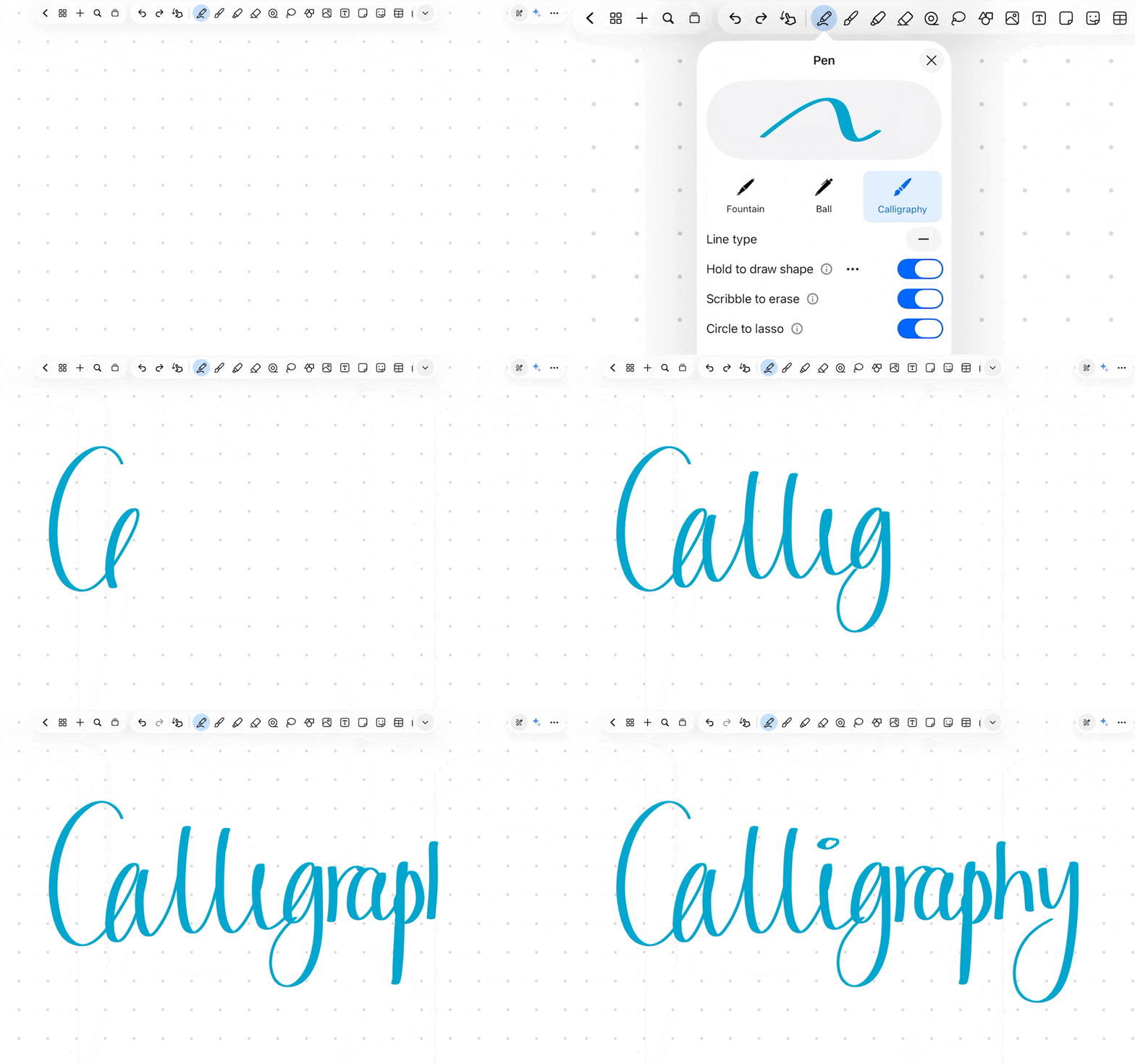
Use the calligraphy pen for chapter headings and topic titles in your study notes. It sounds small, but when your notes are visually organised and genuinely look good, you revisit them more. Revision becomes less of a chore.
Hand-lettered annotations on mood boards, expressive labels on freeform canvases, or just giving your ideas a visual voice. Writing on iPad suddenly feels like a real design tool, not just a note-taking workaround.
Meeting headers, project title pages, or anything where you want your digital notes to look polished and professional without much effort. First impressions matter more than we admit.
A lot of you asked for this one. And honestly, it's one of those features where once it's there, you can't imagine it wasn't. Highly recommended for those annotating PDF notes or organizing complex lecture materials.
Here's what changed: Sticky Notes and Tables are now proper containers. You can write directly inside them: add text, images, stickers, brush strokes, whatever you'd normally put in a note. And the key part: when you move the sticky note or table, everything inside moves with it.
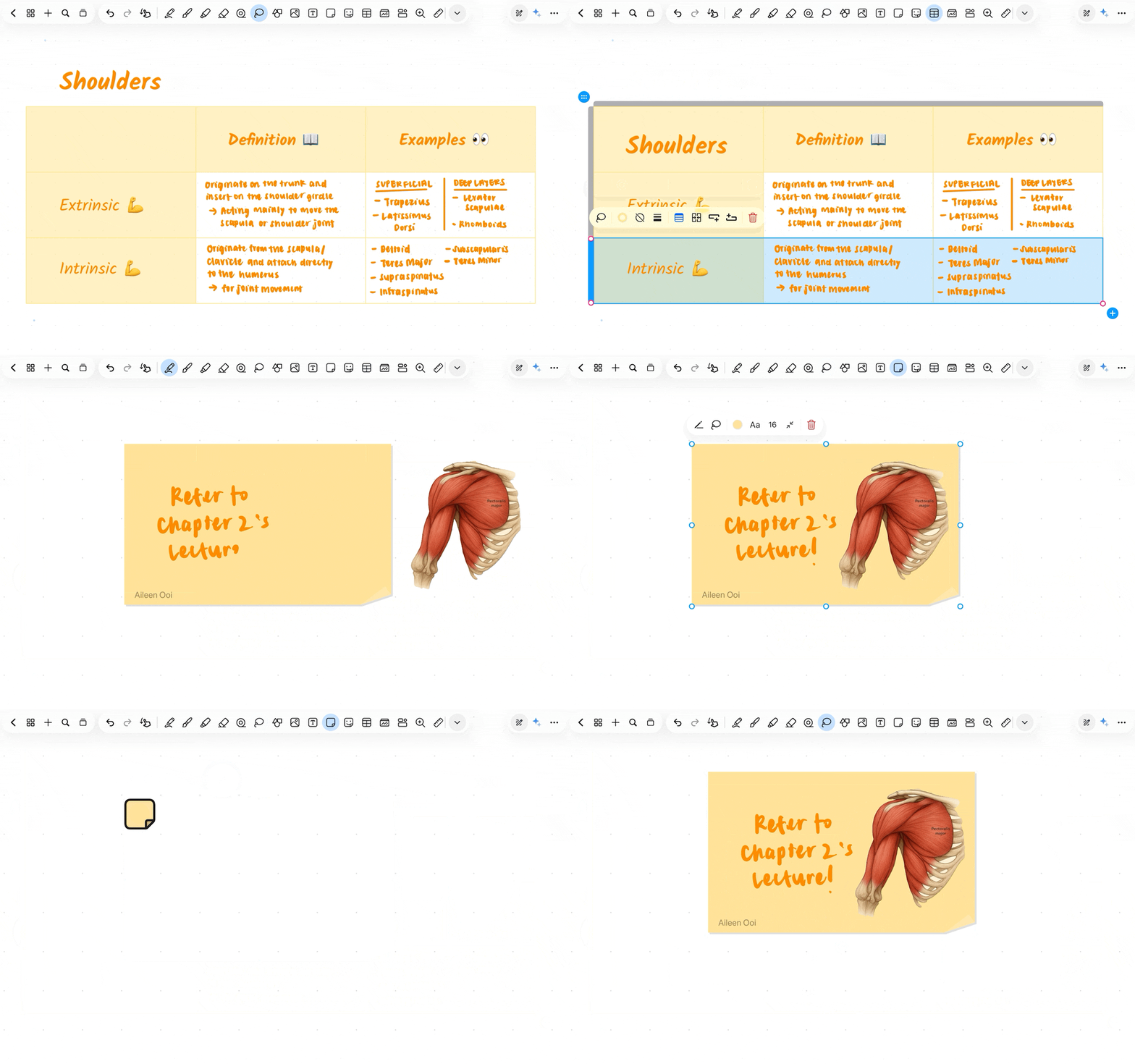
Each sticky note becomes a self-contained idea card with text, visuals, and annotations all inside. Rearrange your thinking freely without anything falling out of place. Great for notes for college where ideas keep shifting as you learn.
Use tables as a lightweight Kanban board. Each cell holds a task, an image, or a status update, making Notewise more than just a writing app.
We know that writing on tablets can be messy. Maybe you accidentally deleted a page of audio-synced notes or messed up a template during a fast-paced lecture.
Undo and Redo now works across all page-level actions. Not just strokes but rotate, reorder, change templates, move, copy, duplicate, delete, and insert. All of it, reversible, with a single tap.
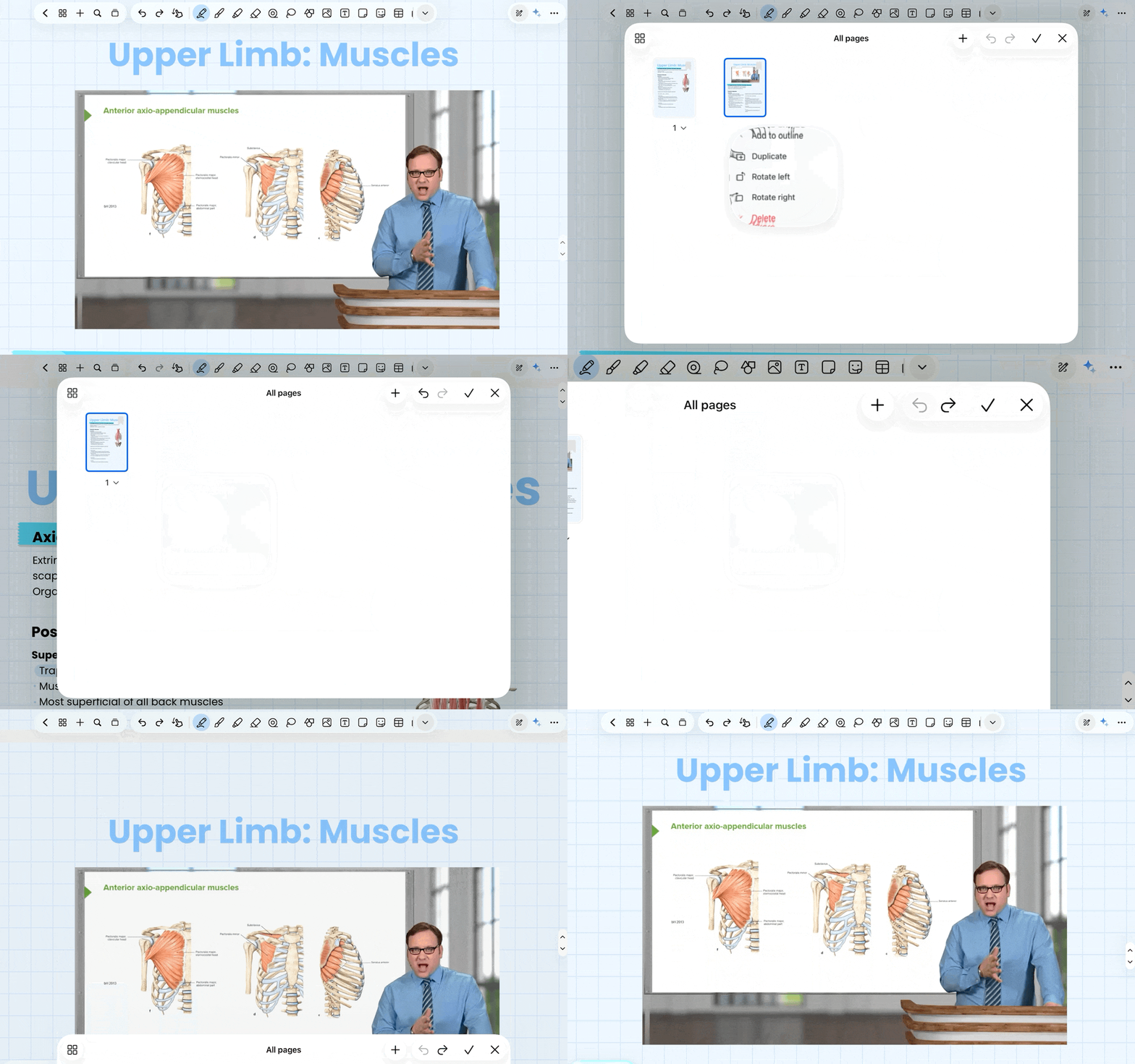
Before, there was an invisible line between "undo-able" and "permanent." That line is gone. You can experiment with your notebook layout knowing that one tap puts everything back exactly where it was.
Whether you are transitioning from apps like Goodnotes or Notability, or looking for a powerful free notes solution, Notewise 3.6 is designed to be the most intuitive notebook in your pocket.
Three things, done thoughtfully. Because the small stuff adds up.
If you try any of these and find a workflow we haven't thought of, honestly, we'd love to hear it. Drop it on our feedback portal.
More coming. As always, thank you for using Notewise and for the feedback that keeps shaping it.
— The Notewise Team
ZIIKR Pte. Ltd.
#01-08
2 Science Park Drive
Singapore 118222